
Basketball match day
Mark who's here, set your starting five and tap Start Game. Kickd runs the rotation alarms and tracks every minute and every basket. After the buzzer, your players or parents vote.
Set up once, at home
About 10 minutes. Do it before game day.
-
Create your team
Open Kickd and sign in. Tap Create Team, then enter the team name, the sport (Basketball) and the age group off your rego.
The age group sets your quarter length for you, so there's nothing to work out.
-
Add your players
Go to the TEAM tab at the bottom of the screen. Tap + Add Player and enter a name and shirt number. That's your whole roster, and you can add or edit players any week.
-
Check the format
On the same TEAM tab, check the AGE GROUP. It locks after your first match, so fix it now if it's wrong.
Pick Quarters or Halves under FORMAT. Or tap a COMMON TIMES preset to set both at once: 4×8, 4×10, 2×18 or 2×20.
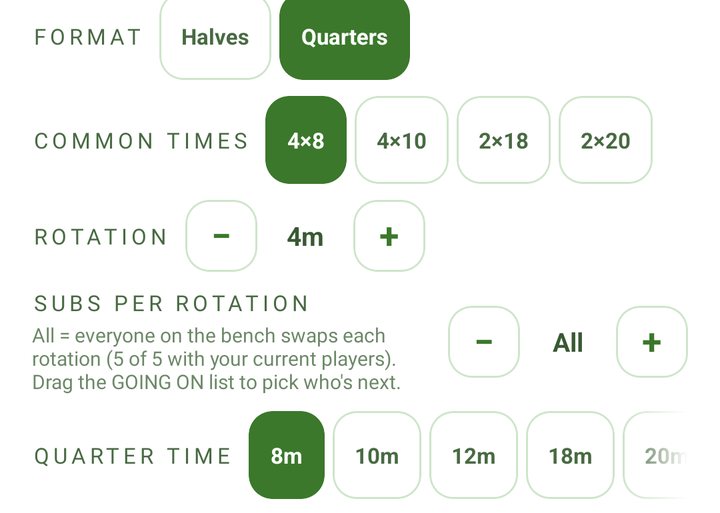
The TEAM tab: format, common times and quarter time. -
Invite parents and helpers
On the TEAM tab, tap Share Join Link under INVITE PARENTS/GUARDIANS (INVITE SUPPORTERS on an Opens team) and send it to your team chat. Parents follow the score live on their own phones. The link is for adults only.
Want a helper to run the clock and log the game? Tap Share PA Link under PERFORMANCE ANALYSTS. They join as your Performance Analyst and run the live screen while you coach.
Borrowing a player for the day? Tap + Add Guest Player. Guests play and get minutes but stay out of your season stats.
| Age | On the court | Default |
|---|---|---|
| U6 to U9 | 5 | 4 × 8 min |
| U10 to Opens | 5 | 4 × 10 min |
Four quarters by default. For another length, tap a chip on the QUARTER TIME row (HALF TIME for halves): 6, 8 or 10 minutes up to U12, and 8, 10, 12, 18 or 20 from U13.
Practice first. Not sure you're ready? On HOME, tap Start Practice Game: a pretend match on a sped-up clock. Nothing is saved and parents see nothing, so run as many as you like before game day.
Until your first match, HOME shows a BEFORE YOUR FIRST GAME checklist. Tap any line to go straight there. Your three free matches include every stat, so you can see what Team Stats adds before you choose a pass.
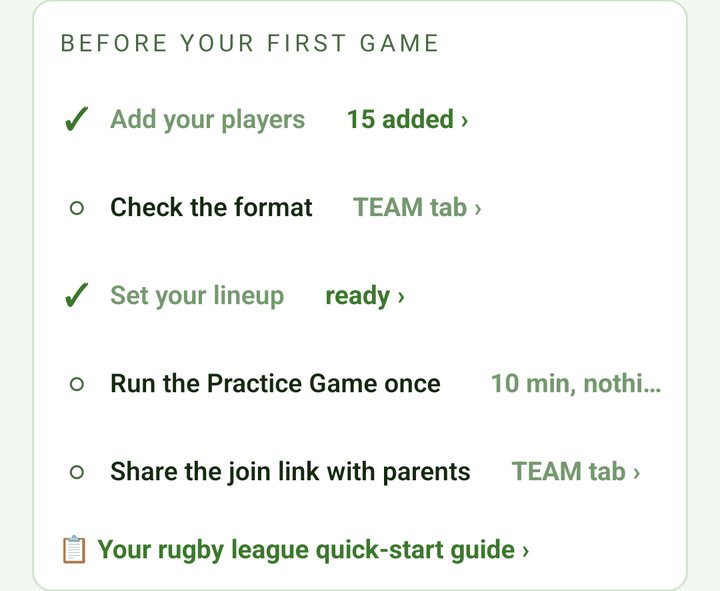
Before tip-off
About 60 seconds courtside.
-
Mark who's here
On the home screen, tap any player who didn't turn up to grey them out. Everyone else is in.
Type the other team's name under OPPONENT if you like. It shows on the live screen.
-
Set your starting five
U10 and up: tap Set Lineup and fill the five spots (guards, forwards and a centre), or tap Auto-fill to build a fair-share five from who turned up.
U6 to U9: there are no positions. You can pick who starts on Set Lineup (or tap Auto-fill), or skip it, and Kickd rotates to share court time.
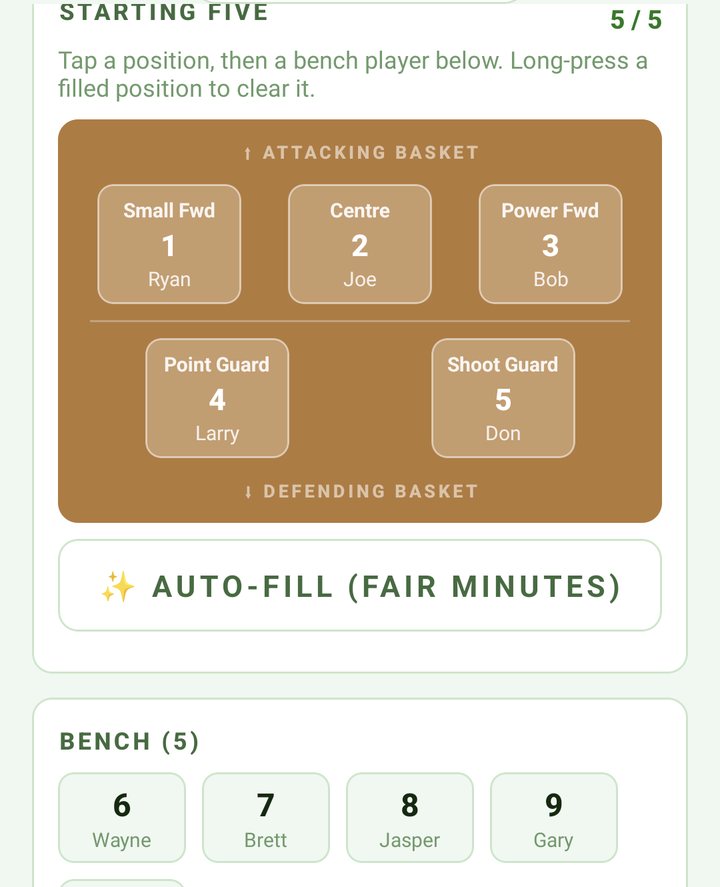
Set Lineup after Auto-fill, with the bench below. -
Tap Start Game
You only plan the starting five. Each quarter picks up from whoever finished the last one, so you adjust at the break instead of planning four times over.
From U10, if your starting five isn't set, Start Game opens the lineup first. It only asks for as many players as turned up.
On the court
The live screen.
-
Log your baskets
Tap your score cell, pick what it was, then tap the scorer. Kickd keeps the running score.
On a tablet, tap the score in the stats column beside the court, then the scorer.
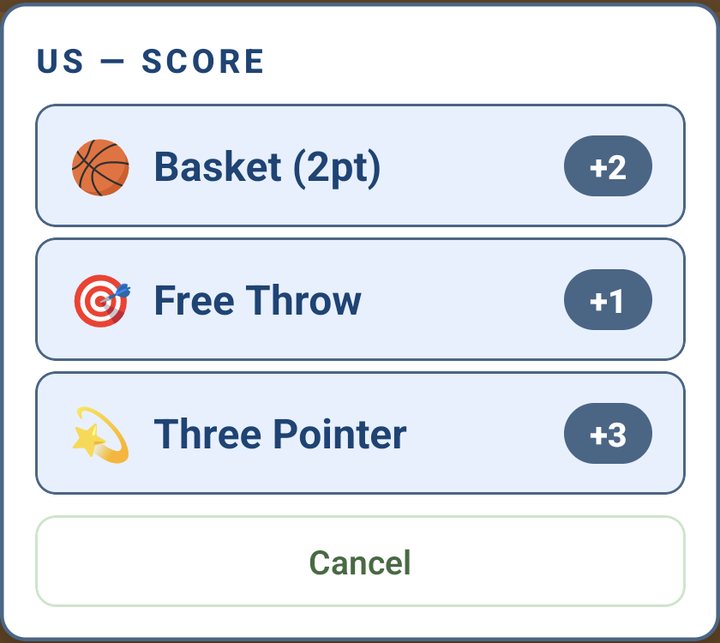
Tap your score cell and pick what it was. -
Log their score
Tap their score cell and pick what it was. No names needed.
-
Roll the subs
Two taps: the player coming off, then the player going on. Subs are unlimited, and every one updates everyone's minutes.
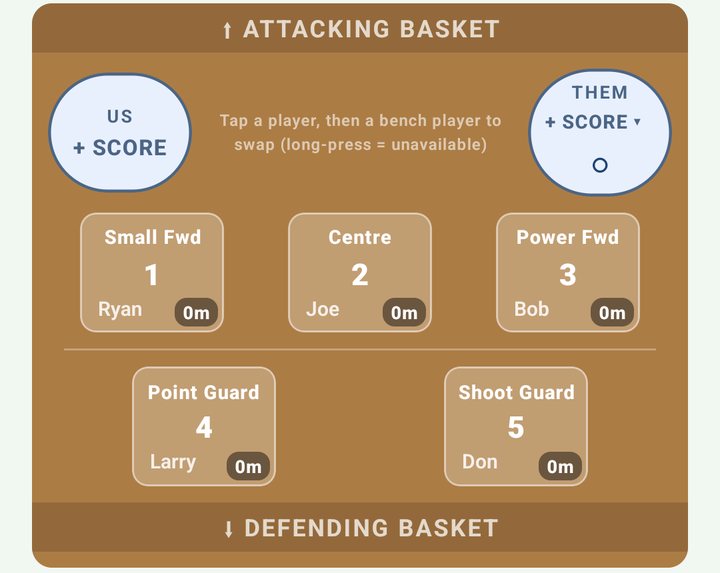
Every player shows their minutes. -
Keep it fair
Every player shows their minutes, on the court and on the bench. Anyone getting too much game time turns amber.
-
If a player can't go on
Long-press them and choose Mark Unavailable. Kickd takes them off, and from U10 you tap a bench player to fill the spot. For a no-show, choose Not Here - Mark Absent. It clears their minutes.
-
Fix a mistake
On a phone, long-press your score cell to take back your last score, as long as it's the last thing you logged. Theirs works the same way. To take back a stat, say "undo". On a tablet, tap Undo in the match log. Or say "undo".
| Score | Points | Ages |
|---|---|---|
| Basket (2pt) | 2 | Every age |
| Free Throw | 1 | Every age |
| Three Pointer | 3 | U13 and up |
The junior game has no three-point line, so a long make at U12 and under counts as a basket.
Match stats, U13 and up
With Team Stats you can also log assists, rebounds, steals, blocks, turnovers and fouls. Fouls are a plain count: Kickd doesn't track foul-outs.
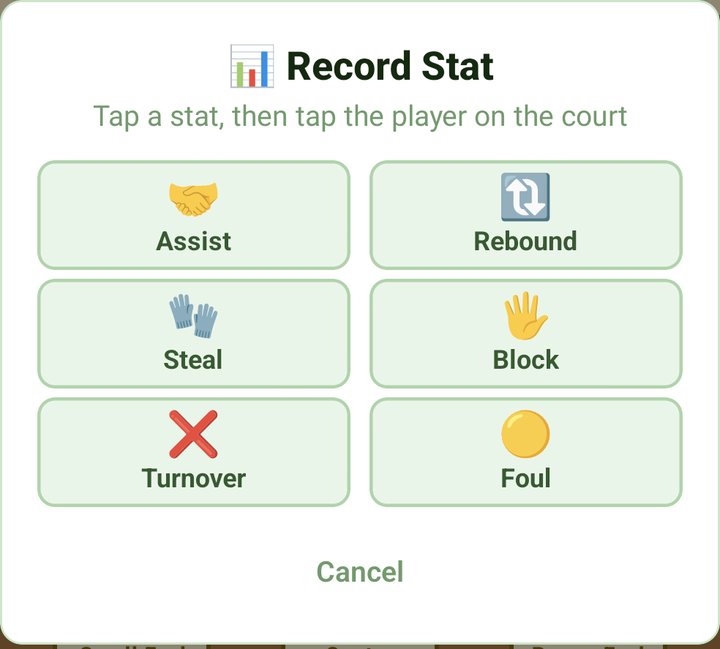
On a phone, tap the round stats button at the bottom left, pick a stat, then tap the player. On a tablet, pick the stat in the column beside the court.
Rotation alerts
On at every age.
With five on the court and the rest on the bench, someone's parent always feels short-changed.
Kickd runs the alarm and lines up each swap: the player with the most minutes comes off, and the player who has waited longest on the bench goes on.
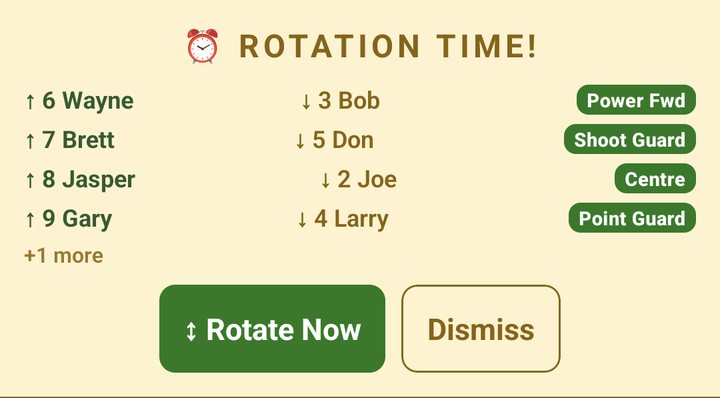
- Set how often under ROTATION on the TEAM tab. When it's time, Kickd buzzes and ROTATION TIME! shows who's coming off and going on.
- Rotate Now makes every swap in one tap, or tap Dismiss and play on.
- Big bench? Set SUBS PER ROTATION on the TEAM tab to swap a few players at a time instead of a full line change.
- You're in charge. Drag the GOING ON list to change who's next, or tap a name under COMING OFF and pick someone else on the court. Or ignore the card and sub whenever you like.
- Junior matches (U6 to U12) get a Fairness % plus a season chart on the stats screen.
The clock
Stoppages, early whistles, late arrivals.
- Tap Pause for a long stoppage and Resume to go again. On a phone it sits under the field. On a tablet it's the pause button in the top bar.
- The clock stops itself at each break. To end a period early, tap Finish Half (or Finish Q1 and so on for quarters) and confirm.
- At the break, make any changes, then tap Start 2nd Half (Start Q2 and so on for quarters).
- Clock beat the whistle? On the break screen, tap Half not finished, keep playing (Quarter for quarters). Keep logging as normal, nothing spills into the next period, then tap End 1st Half when play stops. Full time has the same button.
- You can lock your phone. The clock keeps running and alerts still come through. If play was stopped while you were away, tap Rewind, play was stopped when you come back.
- Someone turns up late? Tap + Add to Game next to their name under Absent on the live screen.
- The clock counts down each period. Prefer it counting up? Change MATCH CLOCK on the TEAM tab.
Full time
No rush at the huddle.
End the game and pick your player
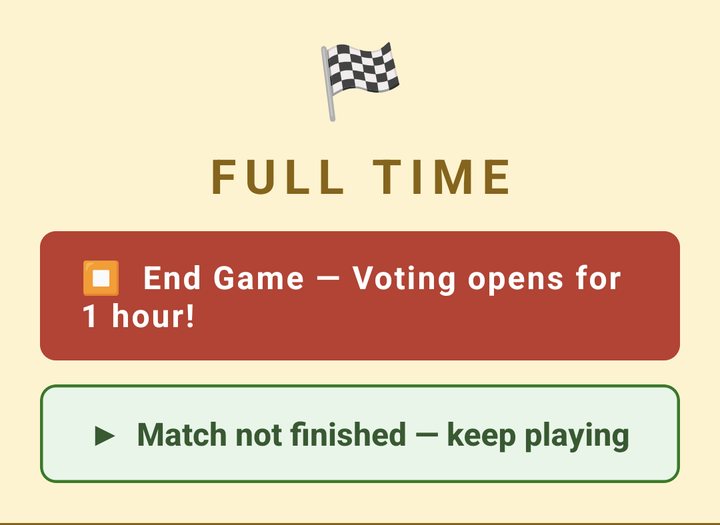
At full time, tap End Game at the top of the screen. The match ends straight away.
Pick your Player of the Match on the results screen when you've got a moment. You've got an hour after the buzzer, and Kickd sends a reminder if you haven't picked.
Who votes, and when
- Juniors (U6 to U12): parents vote Players' Player on their child's behalf, for an hour after full time. It's on by default, under PLAYERS' PLAYER on the TEAM tab.
- Every vote builds the season Players' Player leaderboard. Parents never see the tally.
- Seniors (U13 to Opens): turn on PLAYER VOTING on the TEAM tab and players vote after each match. Opens players join with your Player Code (TEAM tab). U13 to U18 players need a parent to switch on their login under PLAYER LOGINS on the parent's TEAM tab.
After the game
- Tap Share result to the team on the results screen to send the score to your group chat.
- Every match is saved on the STATS tab under HISTORY. Tap one for the full match.
- On Team Stats, tap Share PDF there to send the match report to your club or parents.
- Ran a test game by mistake? The head coach can remove it with Delete Match.
No signal
Dead spots, country grounds, carnival days.
- The whole match runs on your device. The clock, the lineup, scores, stats and subs don't need the internet.
- Finished games wait on the device and save to your season as soon as reception returns.
- Parents' live view needs signal. Their screens catch up once they're connected again.
- Voice works with no signal too, once the voice pack is on your phone. Download it at home on Wi-Fi: on the TEAM tab, tap Download in the KICKD CALLOUT row (about 68 MB).
Call it in by voice
Kickd Callout comes with every pass, at every age.
-
Pick your mic
On HOME, tap Bluetooth headset or Phone mic (Tablet mic on a tablet). A headset with a boom mic holds up in crowd noise. The phone or tablet mic suits training or a quiet ground, and you tap the mic button each time you want it to listen.
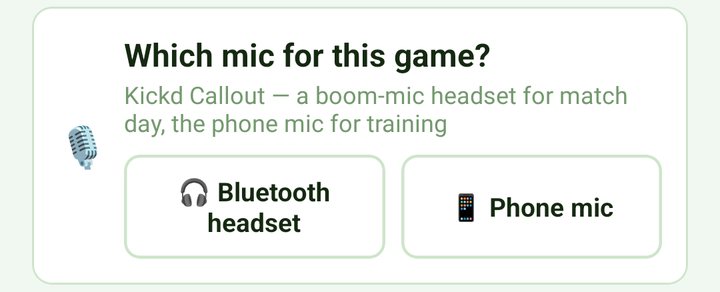
Pick the mic on HOME before the game. -
Arm the mic
If you picked a mic on HOME, it arms itself at the start of play. Otherwise tap the mic button in the top bar. Red means it's logging what it hears, and the bar shows what it heard and what it logged.
-
Mute when you step away
Tap the mic again to mute for sideline chats or stoppages. On the phone or tablet mic, press and hold to mute. Nothing logs while it's muted. The mic stays armed through the break and switches off at full time.
Which headset
A Bluetooth headset keeps you hands-free, with your eyes on the game, so one person can log the whole match by voice. Most Bluetooth headsets work, and coaches have even used smart glasses, but results vary with noise cancelling. The Shokz OpenComm 2 boom mic is the best tested on a noisy sideline.
Mix taps and voice freely. Undo fixes either.
Voice comes with every pass. On Team Pass you call the baskets, threes and free throws for both teams, subs, rotate now, pause and undo. On Team Stats every call on this page as well. Calls marked Team Stats need Team Stats. Junior teams hear a shorter list: only the stats their age group logs. Scores, subs, rotations and the controls work at every age.
Our team say the shirt number
Opposition no numbers, just the type of score
Say the number as a word: "nine", "twenty three", up to ninety nine. Mis-spoke? Say "undo".
Speech recognition runs on your device. Your audio is never recorded, stored or sent anywhere.